How to Run Your LinkedIn Content From Claude With MCP
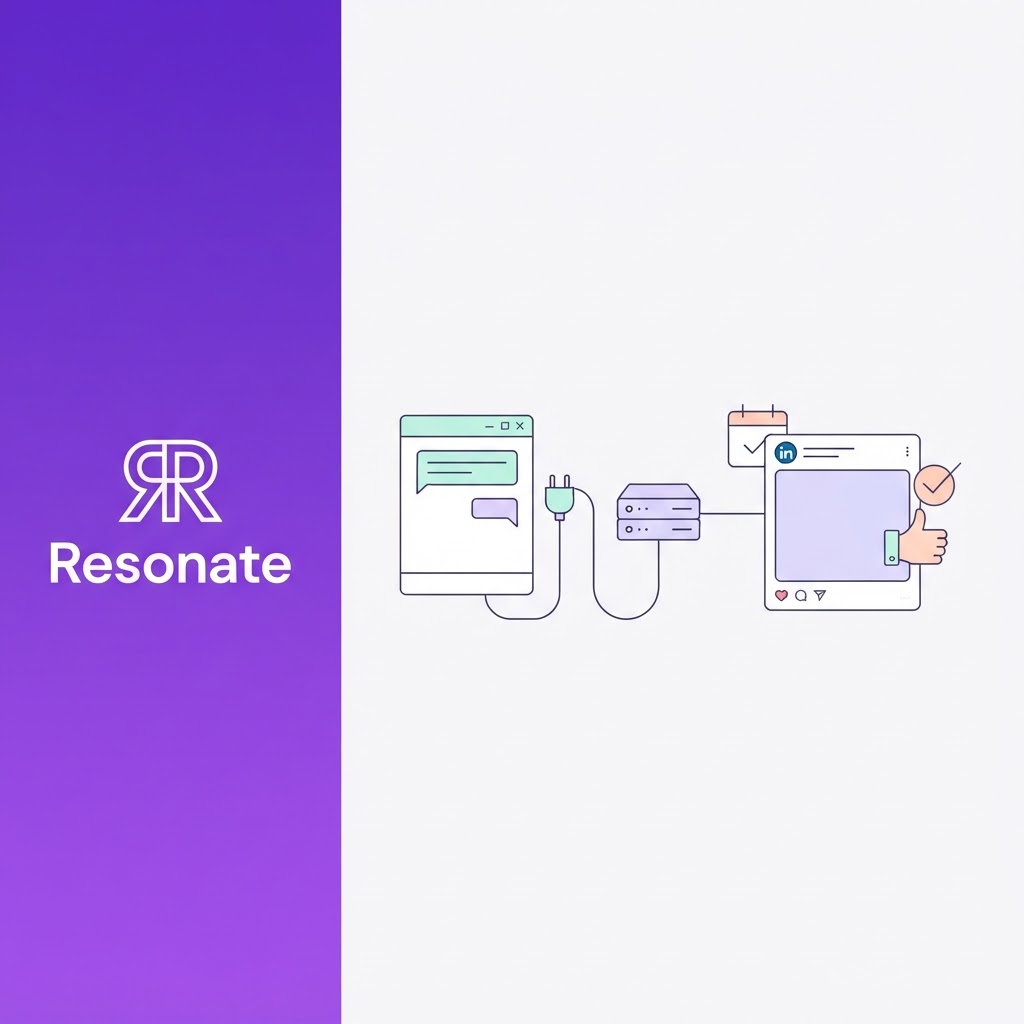
If you already plan, research, and write in Claude, switching to a separate LinkedIn tool every time you want to post feels like a step backwards. You copy context out of Claude, paste it into another app, generate a draft, then copy it back.
A Claude LinkedIn MCP setup removes that loop. By connecting Claude to a LinkedIn MCP server, you can find post ideas, draft in your voice, score drafts, and schedule posts without leaving the conversation. This guide explains how MCP works, which setup options exist, how to connect one to Claude step by step, and how to run agent workflows safely with a human approving every post.
The short answer: To run LinkedIn content from Claude, connect a LinkedIn MCP server as a custom connector in Claude: Customize > Connectors > + Add > Add custom connector, then enter the server’s URL and sign in. Claude can then call that server’s tools, such as “list ideas”, “generate draft” or “schedule post”, from natural-language requests. Review every draft before anything publishes.
What are the key takeaways?
- MCP (Model Context Protocol): Is an open standard that lets Claude use external tools through a “server”.
- A LinkedIn MCP server: Exposes LinkedIn content actions (ideas, drafts, scoring, scheduling, and analytics) as tools Claude can call.
- Setup is a one-time step: In Claude’s Connectors settings, followed by signing in.
- Check how a server connects to LinkedIn: Some community servers use methods that can break LinkedIn’s rules.
- Keep a human in the loop: Let the agent draft and schedule, but approve what goes live yourself.
What is MCP, and why does it matter for LinkedIn content?
Model Context Protocol (MCP) is an open standard, introduced by Anthropic in 2024, for connecting AI applications to external tools and data. Instead of building a custom integration for every service, a service publishes an MCP server, and any compatible AI client (Claude, ChatGPT, Cursor, and others) can discover and use its tools.
For LinkedIn content, that means Claude can do more than write text. Through a LinkedIn MCP server, it can take actions such as:
- Pulling post ideas from your work
- Drafting in your voice profile
- Scoring a draft before you publish
- Scheduling an approved post
- Reading your post analytics
You ask in plain English, like, “Draft a post about last week’s customer win”, and Claude chooses which tools to call.
Why use Claude for LinkedIn content?
Many founders and marketers already use Claude for research, strategy docs, and meeting notes. Running LinkedIn from the same place has three advantages:
- Your context is already there: The doc you just wrote or the call notes you summarised can become a post in the same conversation.
- Fewer tabs, less copying: No more moving text between Claude and a separate LinkedIn tool.
- Multi-step workflows: Claude can chain actions together: find ideas, draft, score, revise, and schedule, all in one request.
Without MCP: Claude → copy → open LinkedIn tool → paste → generate → copy back → return to Claude
With MCP: Claude → LinkedIn MCP server → draft, score, schedule, or analyse → back in Claude
What are your LinkedIn MCP server options?
There are three main ways to connect Claude to LinkedIn through MCP:
| Option | How it works | Pros | Watch out for |
|---|---|---|---|
| Open-source LinkedIn MCP servers | Community-built servers listed on GitHub and MCP directories | Free, customisable | You maintain and host it yourself. Check how it connects to LinkedIn: some rely on browser sessions or scraping, which can break LinkedIn’s User Agreement. |
| Build your own | Write an MCP server on top of LinkedIn’s developer APIs | Full control | Needs developer time, a LinkedIn developer app and the right API permissions |
| A hosted content platform with MCP | A LinkedIn content tool exposes its features to Claude through MCP | No hosting. Includes voice, ideas, critique and scheduling | Usually a paid subscription |
How to choose:
- Developers who just want to publish text: An open-source or custom server can work. Vet it carefully.
- Founders, marketers and agencies: You’ll usually want more than “post this text to LinkedIn”. You want ideas grounded in your work, drafts in your voice, and a quality check before publishing. A hosted platform is the faster route.
How to connect a LinkedIn MCP server to Claude (step by step)
The steps below follow Anthropic’s guide to custom connectors using remote MCP. Custom connectors work in Claude on the web, in Claude Desktop, and in Cowork. Free plans are limited to one custom connector.
Step 1: Get your MCP server URL
Find the remote MCP server URL from the service you’re connecting. For Resonate, it’s in your Resonate settings. See Resonate’s MCP integration for details.
Step 2: Add the custom connector in Claude
- In Claude, go to Customize > Connectors.
- Click + Add, then Add custom connector.
- Enter a name (for example, “Resonate”).
- Paste the remote MCP server URL and click Continue.
- Review the authentication settings and click Add.
Step 3: Sign in and approve permissions
Complete the sign-in (OAuth) flow for the service. Review the permissions it requests and approve only what you need. With Resonate, you approve the specific actions Claude can call, and tokens are scoped to your workspace and can be revoked at any time.
Step 4: Turn the connector on in a chat
In a conversation, click the + in the lower left, choose Connectors and toggle your LinkedIn connector on.
Step 5: Test it
Try a simple, read-only request first:
“List my latest LinkedIn content ideas.”
Once that works, move on to drafting.
For Team and Enterprise plans
Organisation Owners (and, on Enterprise, people with the right custom role) add the connector once under Organization settings > Connectors > Add > Custom > Web. Each team member then goes to Customize > Connectors, finds it and clicks Connect to sign in with their own account.
What Claude can do with Resonate’s MCP tools
Resonate is an AI LinkedIn content generator that exposes its features to Claude through MCP. Once connected, Claude can call these tools:
| Tool | What it does |
|---|---|
| list_ideas | Retrieve post ideas surfaced from your connected work sources (Notion, Slack, GitHub, HubSpot and more) |
| get_voice_profile | Retrieve your voice context so drafts sound like you |
| generate_draft | Generate a LinkedIn post draft using your voice model |
| score_post | Run a draft through Hook, Voice and Virality critique |
| schedule_post | Schedule an approved post |
| get_content_analytics | Retrieve content performance data |
| get_outreach_analytics | Retrieve outreach performance data |
| create_outreach_automation | Configure an outreach workflow within account limits |
See the full details on Resonate’s MCP integration page.
Which Claude LinkedIn MCP workflows should you try?
1. The weekly content sprint
“Find three post-worthy ideas from my work this week. Draft each one in my voice, score them, and show me the drafts with their scores. Don’t schedule anything yet.”
Claude calls list_ideas, get_voice_profile, generate_draft and score_post, then waits for your feedback.
2. Turn a doc into a post
“Here’s the strategy memo I just wrote. Turn the most interesting insight into a LinkedIn post for B2B SaaS founders.”
Your context is already in the conversation, so Claude drafts from it, then scores the result.
3. Improve a weak draft
“Score this draft. If the hook scores below 80, suggest three stronger openings.”
4. The monthly performance review
“Which of my posts drove the most engagement last month? What do the top three have in common? Suggest four ideas for next month based on that.”
5. Agency client batch
“In the Client A workspace, draft two posts from this week’s ideas and score them. I’ll review before anything is scheduled.”
Resonate scopes tokens per workspace, so each client’s voice and content stay separate.
Tip: Be explicit about approval in your prompts. “Don’t schedule anything yet” keeps you in control.
AI agent LinkedIn posting: what should you automate (and what not)?
MCP makes it possible for an AI agent to handle LinkedIn posting end to end. That doesn’t mean it should do everything on its own.
| Safe to automate | Keep a human in the loop |
|---|---|
| Finding ideas from your work | Approving what gets published |
| First drafts in your voice | Posts about customers, numbers or sensitive topics |
| Scoring and suggesting edits | Replies to comments and DMs |
| Pulling analytics and summaries | Outreach to new people |
| Suggesting a posting schedule | Anything that speaks for your company publicly |
A good rule: the agent prepares, and you publish. Your name is on every post, so you should see it before it goes live.
How do you keep a Claude LinkedIn MCP setup secure?
Anthropic’s custom connector guide notes that custom connectors can reach services Anthropic hasn’t verified. It also warns that malicious MCP servers may include hidden instructions that try to make Claude take unintended actions. Before you connect any LinkedIn MCP server:
- Use servers from organisations you trust: Check who built and hosts it.
- Check how it connects to LinkedIn: Avoid servers that rely on scraping or browser cookies.
- Limit permissions. Approve only the actions you need.
- Be careful with “Allow always”: Use it only for trusted servers and read-only tools.
- Use scoped, revocable tokens. Know how to revoke access.
- Review before publishing. Never let an agent post without your approval.
- For teams: Avoid shared API keys with broad access. Each person should connect with their own account.
What if the connector isn’t working?
| Problem | What to try |
|---|---|
| The connector doesn’t appear in chat | Click + > Connectors and check it’s toggled on for that conversation |
| Sign-in fails | Remove the connector and add it again, then complete the sign-in flow |
| Claude doesn’t use the tools | Mention the tool by name (“Use Resonate to list my ideas”) |
| Wrong workspace or client | Check which account you signed in with, and use separate connections per client |
| You’ve hit the connector limit | Free plans allow one custom connector. Remove one or upgrade. |
Is a Claude LinkedIn MCP setup right for you?
It’s a good fit if:
- You already spend much of your day in Claude
- You want to turn docs, notes, and research into posts without switching tools
- You manage multiple voices (executives or agency clients) and want one place to run them
- You like building small automated workflows
It’s less useful if:
- You prefer a visual dashboard for reviewing drafts and analytics. You can still use the Resonate app alongside MCP.
- You only post occasionally and don’t use Claude much
Either way, Resonate works as a LinkedIn AI tool in both modes: run it from Claude through MCP, or use the app directly. The LinkedIn AI tool and the MCP connection share the same voice profile, ideas, and analytics.
How can you run your LinkedIn from Claude in under 5 minutes?
Resonate is an AI-powered content platform that connects to Claude through MCP, so you can find ideas, draft in your voice, score posts, and schedule them without leaving your chat. MCP is included with the Starter plan.
Frequently asked questions
What is Claude's LinkedIn MCP?
Claude LinkedIn MCP is a setup where Claude connects to a LinkedIn MCP server through the Model Context Protocol. Claude can then call LinkedIn content tools, like finding ideas, drafting, scoring, scheduling, and analytics, from natural-language requests in a chat.
What is a LinkedIn MCP server?
A LinkedIn MCP server is a service that exposes LinkedIn-related actions as tools that MCP-compatible AI clients can use. Options include open-source community servers, servers you build yourself with LinkedIn’s APIs, and hosted content platforms like Resonate.
Can Claude post to LinkedIn directly?
Claude can’t post to LinkedIn on its own. With a LinkedIn MCP server connected, it can call that server’s tools, which may include drafting and scheduling posts. Whether a post is published and how depends on the server. With Resonate, you approve posts before they’re scheduled.
Is AI agent LinkedIn posting safe?
It can be, if the MCP server uses approved ways to connect to LinkedIn, permissions are limited, and a human approves every post. Avoid tools that rely on scraping or browser extensions, which can break LinkedIn’s User Agreement and put your account at risk.
Do I need to be technical to set up a LinkedIn MCP server in Claude?
No, if you use a hosted server. You add the server’s URL under Customize > Connectors and sign in. Building or self-hosting a server yourself does require developer skills.
Does Claude plan to support custom connectors?
According to Anthropic, custom connectors using remote MCP are available on free, pro, max, team, and enterprise plans. Free plans are limited to one custom connector.
Does Resonate’s MCP work with other AI clients?
Yes. Resonate’s MCP works with Claude, ChatGPT, Cursor, and n8n, plus Zapier through its MCP beta.

Content Writer @ Resonate
Charlotte explores LinkedIn content, personal branding, AI writing, and founder-led marketing at Resonate. She believes the best content comes from real experience, not generic advice, and writes practical insights to help founders turn what they already know into content that people want to read.
Write LinkedIn content that sounds like you
with Resonate's AI Voice Engine